WireGuard Server with Pi-Hole
In my quest to achieve the most secure internet connection possible, I configured my local server so that all my traffic is tunneled through WireGuard to my server, and that any traffic wishing to access the internet must also pass through Pi-Hole to get an ad-free* and more secure internet experience.
What is WireGuard?
WireGuard is a modern VPN protocol that allows encrypted tunnels to be established between peers.
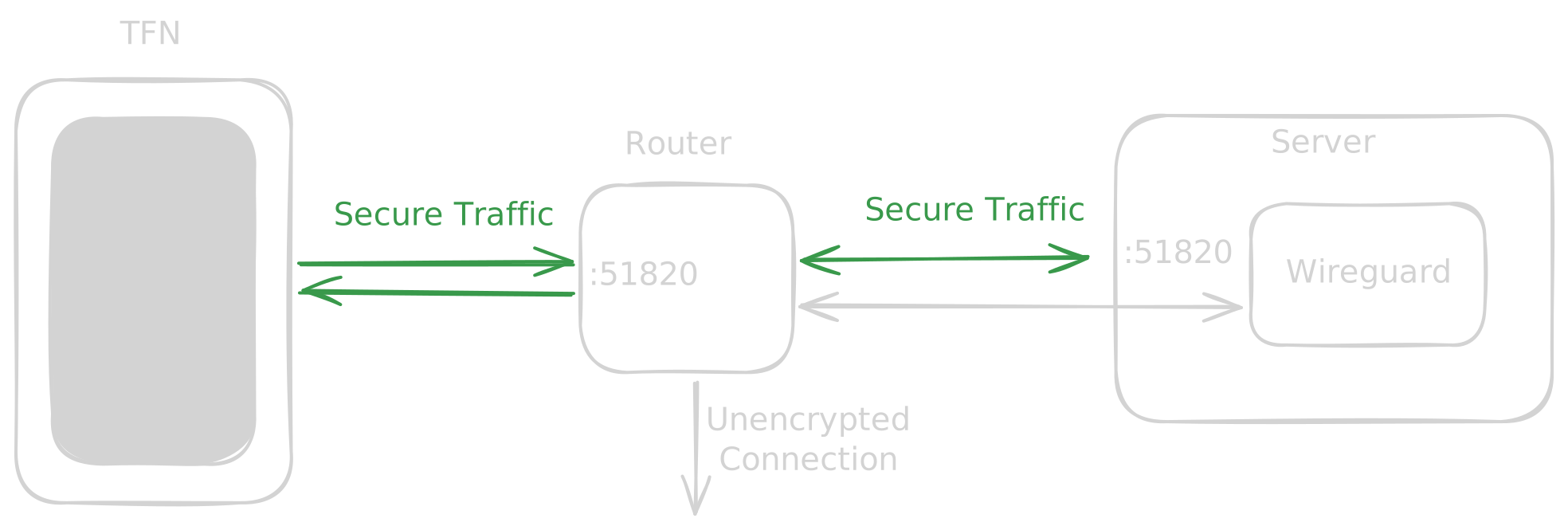 WireGuard offers the following advantages1 compared to other VPN servers:
- Size: The project is the smallest in its category, allowing for a “comfortable” review of its source code compared to other clients such as OpenVPN.
- Speed: By using modern cryptographic primitives, it achieves higher performance than any other VPN client.
- Encryption: Based on public and private key pairs.
- Silent: Although the packets are easily recognizable, a server will never respond to a client unless the client knows the public key that the server is configured to listen to.
Configuration
A WireGuard communication setup must consist of both a server and a client.
WireGuard Server
To configure a WireGuard server, the following steps are required:
- Enable port
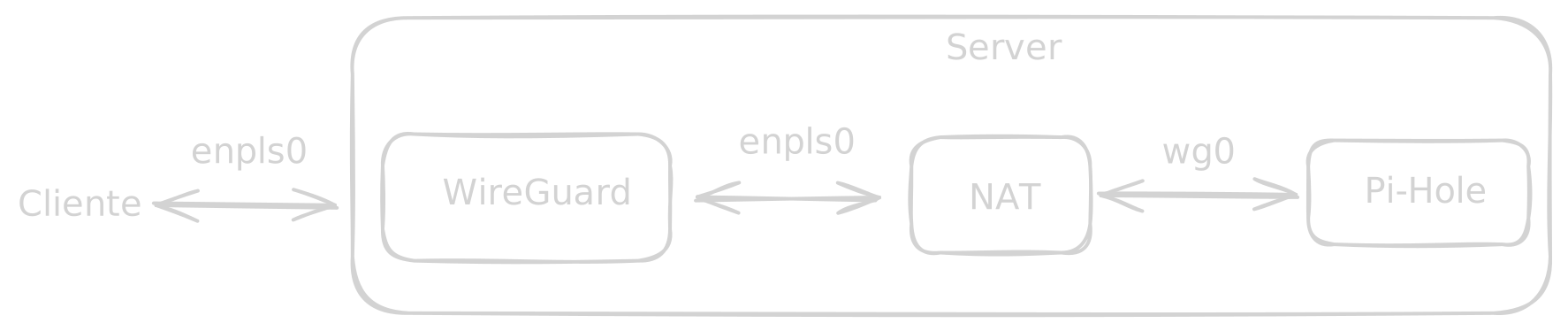
51820in the firewall of both the router and the server. Only UDP traffic needs to be allowed. - Configure a NAT rule so that traffic from the network interface being used (for example
enp1s0) is routed through an internal network interface that will conventionally be namedwg0. - Configure the server keys, which will be used to encrypt client traffic. To generate these keys, use the following commands:
1wg genkey > private.key
2wg pubkey < private.key > public.key- Define the IP address of the
wg0interface, the server’s private key, and the public keys of the devices that will connect to it. Additionally, define an IP address or range of IP addresses that these devices will use within thewg0network.
Below is an example configuration in NixOS:
 1{
 2  # enable NAT
 3  networking.nat.enable = true;
 4  networking.nat.externalInterface = "enp1s0";
 5  networking.nat.internalInterfaces = [ "wg0" ];
 6  networking.firewall.trustedInterfaces = [ "wg0" ];
 7  networking.firewall.allowedUDPPorts = [ 51820 ];
 8
 9  networking.wireguard.interfaces = {
10    wg0 = {
11      ips = [ "10.100.0.1/24" ];
12      listenPort = 51820;
13
14      privateKey = "${config.globals.wireguard_server_privatekey}";
15      peers = [
16        { # TFN
17          publicKey = "${config.globals.wireguard_tfn_publickey}";
18          allowedIPs = [ "10.100.0.2/32" ];
19        }
20        { # NomadUSB
21          publicKey = "${config.globals.wireguard_nomadusb_publickey}";
22          allowedIPs = [ "10.100.0.3/32" ];
23        }
24      ];
25    };
26  };
27}
WireGuard Client
A private/public key pair must be generated, and the public key must be shared with the server you want to connect to.
To configure a client connection, the following parameters must be added:
- Client private key
- Client public key
- Client address (for example, for a phone this would be
10.100.0.2) DNSserver — in principle, any DNS server can be used. However, if you want the traffic to go through Pi-Hole, use10.100.0.1, which is the IP of the server that will also run Pi-Hole (as I will explain later).- Server public key
- Endpoint, which will be
ip.pu.bli.ca:51820 - Allowed IPs — in my case, the one assigned by the server, i.e.,
0.0.0.0/0
Pi-Hole
Pi-hole is a utility that creates a DNS server capable of caching visited domains and restricting access to them. Pi-Hole is very useful if, for security reasons, you want to block:
- Malicious IPs, such as websites that distribute malware
- Advertising IPs, like domains from
ads.google.com - Domains used purely as trackers
Note that Pi-Hole does not replace a firewall or an IDS system, but it significantly reduces exposure to trackers and malicious domains.
Installation
To install Pi-Hole, I strongly recommend using docker compose and the host network mode. In NixOS, the configuration would look like this:
 1{ config, pkgs, ... }:
 2
 3{
 4  virtualisation.docker.enable = true;
 5  virtualisation.oci-containers = {
 6    backend = "docker";
 7    containers.pihole = {
 8      image = "pihole/pihole:latest";
 9      environment = {
10        TZ = "Europe/Madrid";
11        PUID = "1000";
12        PGID = "1000";
13        FTLCONF_webserver_api_password = "${config.globals.pihole_password}";
14      };
15      volumes = [
16        "/home/gabriel/Docker/Pihole/etc-pihole:/etc/pihole"
17        "/home/gabriel/Docker/Pihole/etc-dnsmasq.d:/etc/dnsmasq.d"
18      ];
19      ports = [
20        "53:53/tcp"
21        "53:53/udp"
22        "67:67/udp"
23        "80:80/tcp"
24      ];
25      networks = [ "host" ];
26      autoStart = true;
27    };
28  };
29  networking.firewall.allowedTCPPorts = [ 80 ];
30}
Pi-Hole Configuration
With the program installed using the script above, port 53 will act as the DNS server. You will need to configure the Pi-Hole domains.
Note that in the configuration shown earlier, ports 53, 67, and 80 are exposed to the outside of the machine, meaning any user could access them. In my case, this was intentional because I want other users to be able to use this proxy to secure their traffic. However, if Pi-Hole is only going to be used to protect WireGuard traffic, I recommend using 127.0.0.1:xx:xx so that Pi-Hole is accessible only from the server itself.2
Pi-Hole and WireGuard
Finally, for WireGuard to use Pi-Hole, you must configure the client to use the DNS option 10.100.0.1.
It would be possible to configure Docker to use this DNS server by default, but that could cause an issue: if Pi-Hole crashes, we would lose access to WireGuard as well.
I strongly recommend reading the official page and reviewing the protocol’s advantages in more detail in the following video. ↩︎
I would also like to clarify that all of this is within my local network, so these ports are not exposed to the internet. If they were, some form of rate limiting should be implemented on the DNS service to prevent a possible DDoS attack. ↩︎