XMPP Server on NixOS
Recently, a lawsuit was filed against WhatsApp for allegedly lying about the encryption it provides. We should always distrust any program that is not open source—and distrust it twice if it directly touches our right to privacy. My point is not whether WhatsApp is lying or not, but rather that we cannot verify it.
For several years now, I have made it a goal to distance myself as much as possible from companies that control so much of our lives—whether by running services that free us from streaming platforms, using programs like Syncthing to synchronize our information anonymously, using VPNs to tunnel our traffic, and so on. It is only natural that I now want to take the next step and have secure, private messaging. That is why I decided to run my own XMPP instance on my VPS.
Why XMPP?
These were the criteria I used to choose a solution:
- Open source: I ruled out any software whose code is closed—even if only part of the project is closed. This excludes FB Messenger, WhatsApp, iMessage, Wickr, Telegram, and Threema.
- E2EE encryption: Absolutely necessary for privacy, which rules out SMS.
- No external requirements: Any additional required information can introduce vulnerabilities. If this is not a concern for you, Signal may be perfect.
- Self-hosted: I want to run my own instance to ensure that any data is always under my control—even if I myself cannot decrypt it. This rules out newer options like Session.
- Resource usage: I prefer having a single VPS for all publicly accessible services, so the solution should not consume many resources. After researching the topic, I ruled out Matrix as a candidate.
This leaves the XMPP protocol as the “winner,” which I decided to run using a Prosody server.
Setup
This setup is inspired by the blog of rokibulroni. His guide is more general, as it allows running the server on any* distribution, while I will show the configuration for a server using the NixOS distribution.
Prosody
The Prosody server will run inside a Docker container:
 1virtualisation.docker.enable = true;
 2virtualisation.oci-containers = {
 3backend = "docker";
 4containers.prosody = {
 5  image = "prosodyim/prosody:13.0";
 6  environment = { TZ = "Europe/Madrid"; };
 7  volumes = [
 8    "/home/gabriel/Docker/Prosody/data:/var/lib/prosody"
 9    "${FullchainPEM}:/certs/fullchain.pem:ro"
10    "${keyPEM}:/certs/key.pem:ro"
11    "${prosodyConfig}:/etc/prosody/prosody.cfg.lua:ro"
12  ];
13  networks = [ "host" ];
14  autoStart = true;
15};
16};
Note that you will need to configure the keys that the server will use (these are defined in the next section) and also provide the prosody.cfg.lua server configuration file. I recommend using the example configuration and/or my own documentation available in my repository.
Also, the Docker image used is prosodyim/prosody:13.0, because prosody/prosody does not receive automatic updates and hasn’t been updated for 4 years.
Certificates
Below is one way to generate the certificates needed for the server:
 1services.nginx.enable = true;
 2services.nginx.virtualHosts."xmpp.gabrielcachadina.com" = {
 3  addSSL = true;
 4  enableACME = true;
 5  serverAliases = [
 6    "upload.xmpp.gabrielcachadina.com"
 7    "conference.xmpp.gabrielcachadina.com"
 8  ];
 9
10  # Optionally proxy WebSocket/File share if needed
11  locations."/" = {};
12};
13security.acme = {
14  acceptTerms = true;
15  defaults.email = "gabrielcachadina@protonmail.com";
16};
In the first part, the domains used are defined. In my case, I will use the xmpp subdomain for XMPP, while the sub-subdomains upload.xmpp and conference.xmpp will be used for uploading files to chats and creating group chats, respectively.
To read the certificates from the Docker container, you can set the following variables:
 1certDir = "/var/lib/acme/xmpp.gabrielcachadina.com"; # Real certificates
 2
 3# Read the ACME files at evaluation time and write to the Nix store
 4FullchainPEM =
 5  if builtins.pathExists "${certDir}/fullchain.pem"
 6  then pkgs.writeText "fullchain.pem" (builtins.readFile "${certDir}/fullchain.pem")
 7  else "/dev/null";
 8
 9keyPEM =
10  if builtins.pathExists "${certDir}/key.pem"
11  then pkgs.writeText "key.pem" (builtins.readFile "${certDir}/key.pem")
12  else "/dev/null";
A conditional is necessary because the first time nixos-rebuild switch is run, the certificates will not yet exist, and the build would fail.
Ports
Finally, the following ports need to be opened to allow proper server-client and server-server communication:
80and443: Used for certificate creation.5222: Used for client-to-server communication (C2S).5269: Used for server-to-server communication (S2S).5281: Used as the file upload server.
Domain
Of course, you will need to configure the subdomain and sub-subdomains to point to your server so that the certificates can be created correctly.
Once all of this is set up, your server will be running under your domain.
Accounts
To create an account inside the container, run the following commands:
1sudo docker exec -it prosody /bin/bash
2prosodyctl adduser gabriel@xmpp.gabrielcachadina.com
For the second command to work, the container must be configured to use the admin_shell module. If this is not enabled, you will not have access to the client shell.
Clients
Once everything is set up, you will have an operational server.
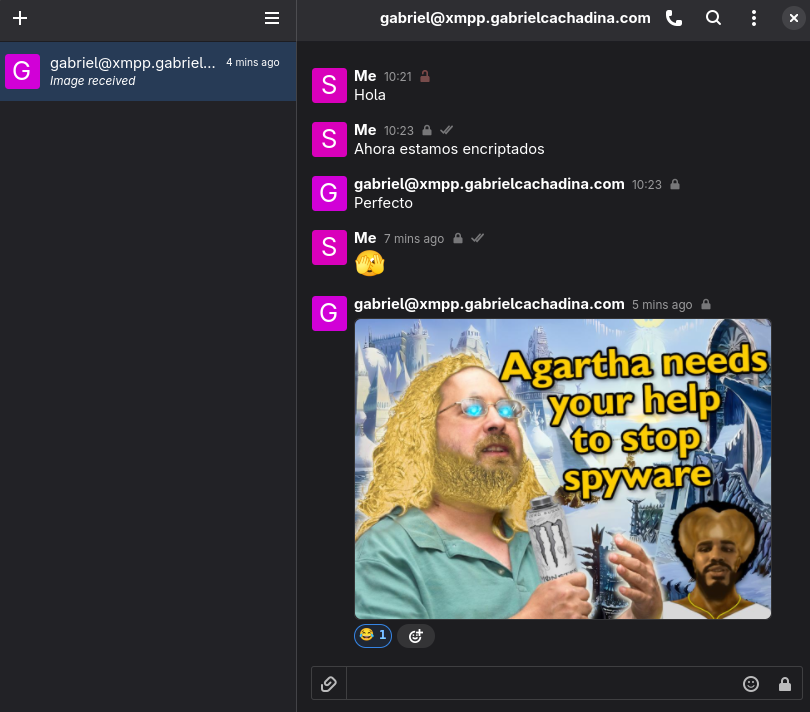
To test it, I recommend using Dino for GNU/Linux and Conversations for Android. Register using the configured username and password, and you will be able to chat with anyone on the XMPP network.
When a conversation starts, it will NOT be encrypted, so the server(s) could see the information being sent. This may seem like a critical flaw. How can our information not be encrypted? Isn’t XMPP supposed to be E2EE?
It is, but we first need to exchange keys—a process similar to what is explained in MQTTs. XMPP is a federated protocol. End-to-end encryption depends on extensions like OMEMO, which are implemented by modern clients.
This process is a voluntary exchange of public keys, but in the clients mentioned above, a lock icon will indicate whether the communication is E2EE, helping prevent mistakes on the client side.
With this in place, you will have a properly configured XMPP server to chat both inside and outside your domain. The content of messages is not accessible to the server, but certain metadata—like who is talking to whom and when—is1.
Do you want to try it? I currently have my own server running on the XMPP network. You can message me at gabriel@xmpp.gabrielcachadina.com. If you prefer to validate your own server, I found a fantastic page that allows you to check the specification compliance of your server.
This could be reduced by removing even more modules from the XMPP configuration (to some extent), but my personal threat model does not require it. In the worst-case scenario, no user could access our messages as long as they are encrypted with OMEMO before an attack occurs. ↩︎